back to blog
Game Dev
Dynamic Camera Adjustment in Unreal Engine: Keeping Actors in View
Learn to create a dynamic camera system in Unreal Engine to keep actors in view, with step-by-step Blueprints and math breakdown
L&D
LoArt & Dev
Author
Nov 16, 20243 min read
#game-development#unreal-engine#blueprints#gamedev#unreal-engine-5
Introduction
In game development, a well-functioning camera system is crucial for providing players with an immersive experience. A camera that keeps all actors in view ensures that the gameplay remains smooth and visually coherent. In this tutorial, we will guide you through the process of creating a camera system in Unreal Engine that auto-adjusts its arm length to keep actors in view. We will cover practical steps using Blueprints, delve into the theory behind the code, and explore the math involved in auto-adjusting the camera’s arm length.
Setting Up the Camera Actor
Create the actor and add the components.
1. Create a new Blueprint Class by right-clicking in the Content Browser and selecting Blueprint Class.
2. Choose Actor as the parent class, I named it BP_ExternalCam.
3. Open BP_ExternalCam and add a Spring Arm and a Camera component.
4. Adjust the Spring Arm’s length and attach the Camera to the end of the Spring Arm.
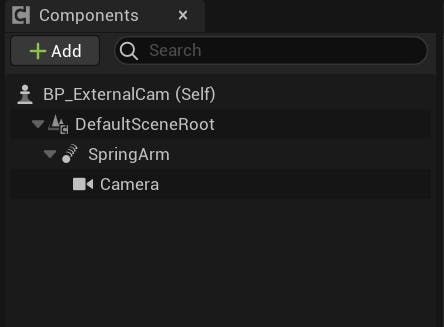
Components section on BP_ExternalCam
Creating the Camera System
Step-by-Step Guide
1. Open the Event Graph of BP_ExternalCam.
2. Add a new variable to store the actors you want to keep in view. Name it ActorsToTrack and set its type to Array of Actors.
Using Blueprints to Implement the Camera Logic
1. In the Tick event, get the bounds of all actors in ActorsToTrack.
2. Move the camera to the center of the actors using SetActorLocation.
3. Calculate the required arm length using the formula derived from the math section (armLength = bounds.length/tan(cameraFov)).
4. Set the Spring Arm’s length to the calculated value using SetTargetArmLength.
%[https://blueprintue.com/render/boa3pqmy/]
%[https://youtu.be/E09O-HURsUc]
Theory Behind the Code
Explanation of the Logic
The camera system continuously updates its position and arm length based on the actors’ positions. By calculating the center of all actors and the furthest distance between them, the camera can adjust its arm length to ensure all actors remain in view.
Math Involved
Detailed Breakdown
To calculate the required arm length, we use basic trigonometry. The camera’s field of view (FOV) can be split to form a right triangle with the actors' distance. By using the tangent function, we can determine the necessary arm length.
Calculations
Determine the angles of the triangle:
1. A = 45° (FOV/2)
2. C = 90°
3. B = 45° (180 - (A + C))
Use the tangent function:
1. tan(A) = a/b
2. Rearrange to find b: b = a / tan(A)
3. Apply the formula in Blueprints to calculate the arm length.
Testing and Debugging
How to Test the Camera System
1. Place multiple actors in the scene and add them to the ActorsToTrack array.
2. Run the game and observe the camera’s behavior.
3. Adjust parameters as needed to ensure smooth operation.
Common Issues and Resolutions
1. Camera not keeping all actors in view: Ensure all actors are correctly added to the ActorsToTrack array. You can also use GetAllActorsOfClass on the Begin Play event to get all the actors you want to track; remember to add these actors to ActorsToTrack.
2. Camera jittering: Use interpolation functions like FInterpTo for smooth transitions.
%[https://blueprintue.com/render/ep41e-2a/]
Conclusion
In this tutorial, we covered creating a camera system in Unreal Engine that keeps actors in view by auto-adjusting its arm's length. We explored the practical steps using Blueprints, the theory behind the code, and the math involved. Feel free to experiment and customize the camera system to suit your project’s needs.
share:
[RELATED_POSTS]
Continue Reading
Game Dev
Unity vs Unreal: Which One Is Better?
My experience working with Unity and Unreal Engine, comparing tools, rendering, platforms, workflow, and what actually matters when choosing the right engine
2026-03-26•6 min read
Game Dev
How to Set Up EOS Integration Kit in Unreal Engine 5
Learn to set up the EOS Integration Kit in Unreal Engine 5 for seamless Epic Online Services integration
2024-12-18•9 min read
Game Dev
Boost Your Unreal Engine Game: Best EOS Plugin Options
Discover top EOS plugins to enhance your Unreal Engine game development with easier multiplayer implementation and cross-platform support
2024-12-01•4 min read